The Pebble User Guide
Turn a small FreeBSD box into a calm, well-behaved router. One YAML file. No drama.#
Brain-friendly edition. Short sections. Big signposts. Every chapter opens with a TL;DR, says roughly how long it takes, and ends with a Done when check, so you always know when you can stop. Skip about freely: nothing here punishes you for reading out of order.
🧭 Start here: pick your path#
You do not need to read this whole guide. Find the row that matches you and jump.
| I want to… | Go to | Time |
|---|---|---|
| Understand what Pebble actually is | 1. Pebble in 60 seconds | 1 min |
| Build a router from a fresh FreeBSD install | 3. Install | 20 min |
| Change something without breaking the Internet | 5. The golden loop | 5 min |
| Do a common job (reserve an IP, forward a port, block a device, use a VPN…) | 6. Recipes | 2 min each |
| Join two sites with WireGuard | 7. Site-to-site WireGuard | 30 min |
| Work out why the Internet died at 3 a.m. | 8. Seeing what's going on | 5 min |
| Use the web interface | 9. The web interface | 10 min |
| Fix something that's wrong right now | 11. Something's wrong | — |
| Just the commands, please | 12. Cheat sheet | — |
The key so you can scan#
| Marker | Means |
|---|---|
| TL;DR | The whole section in three lines. Read only this if you're in a hurry. |
| ⏱ | Roughly how long it takes |
| ✅ Done when | How you know you've finished and can go and make tea |
| 💡 Tip | Nice to know. Safe to skip. |
| ⚠️ Careful | Read this one. It's here because someone got bitten. |
| 🧪 Honesty box | What has and hasn't been tested. No spin. |
| 📸 Screenshots | Taken from Pebble running against a simulated router. The dashed "Development fixture data" banner is there on purpose: every number in them is synthetic. |
🧪 Honesty box. Pebble is young. Its logic is heavily unit-tested and its generated configuration has been checked with the real Unbound and dnsmasq tools, but it has not yet been run end-to-end on a real FreeBSD router. Try it on spare hardware first, not on the only router between your family and Netflix. The full status table is in the README.
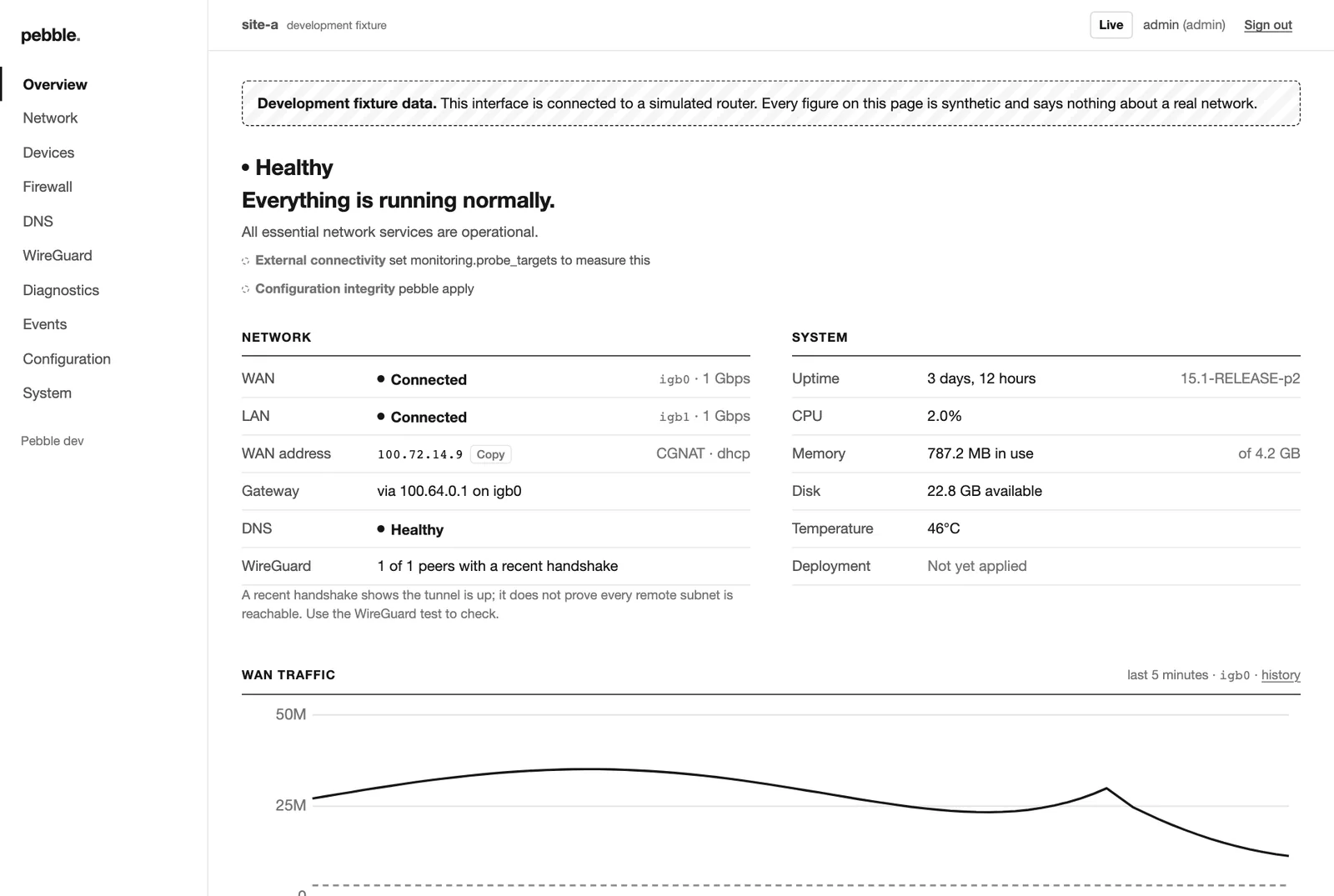 The web overview: four questions answered at a glance. (Simulated router.)
1. Pebble in 60 seconds#
TL;DR
- You describe your router in one file:
pebble.yaml. - Pebble turns that into normal FreeBSD configuration and applies it safely.
- Then it gets out of the way. FreeBSD does the routing, not Pebble.
The mental model (this is the important bit)#
   you edit            Pebble checks           Pebble applies          you say
  pebble.yaml   ──▶   and shows a plan   ──▶   with a safety net  ──▶  "keep it"
                       (pebble plan)            (pebble apply)        (pebble confirm)
                                                      │
                                         you don't confirm in time?
                                                      ▼
                                          it puts everything back
That's it. That's the whole product. Everything else is detail.
In the web interface, the plan step is a review page showing exactly what will change:
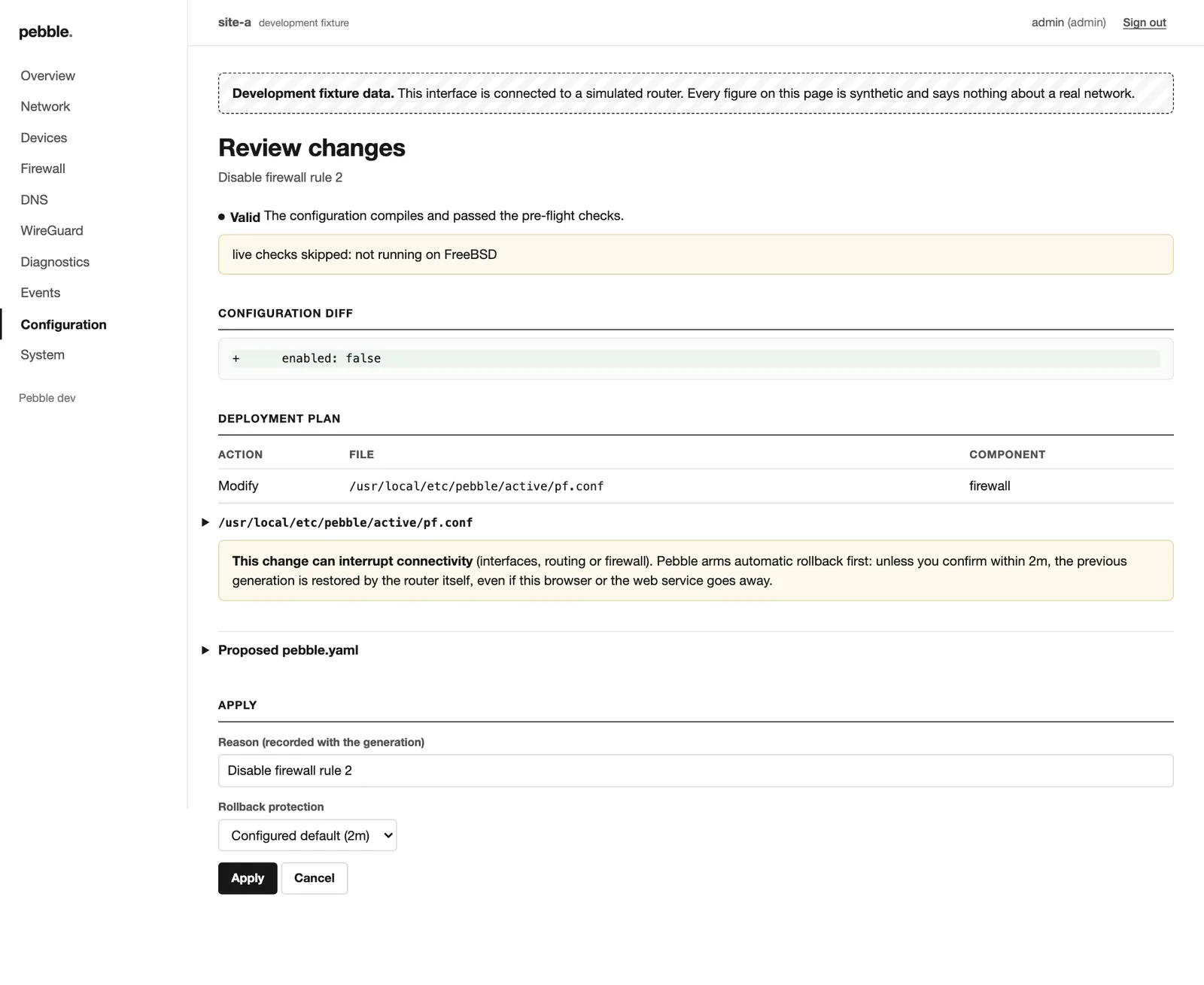 Review before apply: the diff, the files that change, and a warning that this one can interrupt connectivity.
What Pebble looks after#
- 🌐 WAN (DHCP or static) and one LAN, with NAT
- 🧱 Firewall (PF): deny by default, your rules in order, port forwards
- 🏷️ DHCP (dnsmasq): addresses, reservations
- 🔎 DNS (Unbound): your own resolver, DNSSEC, local names, ad blocking
- 🔐 WireGuard: routed site-to-site tunnels, and VPN provider exits (ProtonVPN, Mullvad…) for just the devices you choose
- 📵 Per-device Internet: each device goes out via the WAN, a VPN, or not at all
- 🛟 Safe changes: every change can be undone, automatically if needed
- 🔭 Optional extras: a flight recorder, a terminal dashboard and a web interface
What Pebble is not#
- Not OPNsense or pfSense. Deliberately smaller.
- No cloud, no telemetry, no account with anyone.
- No IPv6 yet, no VLANs, no multi-WAN, no PPPoE.
💡 Tip. "Pebble gets out of the way" is literal. Delete the
pebblebinary and your router keeps routing, filtering and handing out addresses. Everything it set up is ordinary FreeBSD.
✅ Done when you could explain edit → plan → apply → confirm to a friend down the pub.
2. Before you begin#
TL;DR
- One amd64 box with two network ports, running FreeBSD 15.1.
- A keyboard and screen plugged in for the first setup.
- Ten minutes of nobody needing the Internet.
⏱ 5 minutes to check
Checklist#
- An amd64 machine with two Ethernet ports. A Fujitsu FUTRO S930 thin client is the reference box; most mini PCs and VMs are fine.
- FreeBSD 15.1-RELEASE installed (a plain install is perfect).
- Local console access: a real keyboard and screen, or a VM console. Not SSH. You'll see why in a moment.
- You know which port will face the Internet (WAN) and which faces your network (LAN).
- You've picked a LAN address range.
192.168.10.1/24is the default and is fine for most homes.
⚠️ Careful. The very first deployment replaces the firewall and the network settings. Do it from the local console. If you do it over SSH and something's wrong, you're locked out until the automatic rollback kicks in (two minutes by default), which feels like a very long time.
✅ Done when every box above is ticked.
3. Install: from nothing to router#
TL;DR
- Copy the
pebblebinary onto the box. - Run
pebble bootstrapwith your two ports. - Run
pebble confirm. You have a router.
⏱ About 20 minutes, most of it waiting for packages.
Step 1: get the binary on to the box#
On any machine with Go installed, from the Pebble source:
make build-freebsd # makes bin/pebble-freebsd-amd64Copy it across (USB stick, scp, carrier pigeon) and make it executable:
chmod +x pebbleStep 2: find out which port is which#
./pebble interfacesYou'll see names like igb0, igb1, em0 or re0.
💡 Tip. Not sure which is which? Unplug one cable, run the command again, and see which one changed to "no carrier". Pebble will never guess for you, on purpose.
Step 3: bootstrap (the big one)#
From the local console, swapping in your own ports, address, name and time zone:
./pebble bootstrap --wan igb0 --lan igb1 --lan-address 192.168.10.1/24 \
    --hostname pebble --timezone Europe/London --apply
This one command:
- checks the machine is suitable
- installs Unbound and dnsmasq
- loads the kernel modules for the firewall and WireGuard
- installs Pebble itself, its service scripts and examples
- creates
pebble.yamlfrom your answers - applies it, with the safety net switched on
Want to see what it would do first? Add --dry-run. Already got the
packages? Add --skip-packages. No Internet on the box? Use
--packages /path/to/pkgs.
Step 4: check, then confirm#
Plug a laptop into the LAN port. Does it get an address? Can it open a website? Then:
pebble confirm⚠️ Careful. You've got 2 minutes to confirm. Don't confirm, and Pebble quietly puts the machine back exactly as it was. That's a feature, not a bug.
✅ Done when a laptop on the LAN can browse the web and pebble status
says everything's fine.
4. A quick tour of pebble.yaml#
TL;DR
- It lives at
/usr/local/etc/pebble/pebble.yaml. - One section per job:
network,dhcp,dns,firewall,wireguard… - Unknown or misspelt settings are errors, not silently ignored.
⏱ 5 minutes
Here's a complete, working home router. Read the comments; that's the tour.
version: 1

system:
  hostname: pebble
  timezone: Europe/London

network:
  wan:
    device: igb0          # the Internet side
    ipv4:
      mode: dhcp          # or: static, with address and gateway
  lan:
    device: igb1          # your side
    ipv4:
      address: 192.168.10.1/24
  ipv6:
    mode: disabled        # IPv6 isn't supported yet

dhcp:
  enabled: true
  authoritative: true
  start: 192.168.10.100   # addresses handed out to devices
  end: 192.168.10.199
  lease_duration: 12h
  domain: home.arpa       # devices become name.home.arpa

dns:
  enabled: true
  recursive: true         # ask the root servers directly, no ISP in the middle
  dnssec: true            # check signatures
  cache_mb: 32
  blocking:
    enabled: true         # ad and tracker blocking (add lists later)
    response: nxdomain
    update_interval: 24h
    max_domains: 250000
    lists: []
    allowlist: []
    denylist: []

wireguard:
  interfaces: []

firewall:
  default_inbound: deny   # nothing from the Internet gets in…
  default_forward: deny   # …or through, unless a rule says so
  default_outbound: allow
  nat:
    enabled: true
    outbound: wan

management:
  ssh:
    enabled: true
    allow_from:
      - 192.168.10.0/24   # SSH only from your LAN

updates:
  automatic_install: false

recovery:
  rollback_timeout: 120s  # how long you get to confirm
  keep_generations: 5     # how many old versions to keep for rollback
💡 Tip. Every single setting, with an explanation, is in
/usr/local/share/examples/pebble/annotated.yaml. Keep it open in another window.
✅ Done when you can find your LAN address and DHCP range in the file without searching.
5. The golden loop: changing things safely#
TL;DR
pebble plan --diff   # look
pebble apply         # do
pebble confirm       # keep
⏱ 1 minute per change, once it's a habit.
The loop, step by step#
- Edit
/usr/local/etc/pebble/pebble.yaml. - Look before you leap:
This changes nothing. It shows every file that would change, line by line, and warns you about anything risky.pebble plan --diff - Apply:
Pebble validates everything with FreeBSD's own tools, takes a snapshot, applies it and runs health checks.pebble apply - Confirm (if asked):
pebble confirm
Which changes need confirming?#
| Change | Needs pebble confirm? |
|---|---|
| Firewall rules, port forwards | Yes |
| Interfaces, addresses, routes | Yes |
| WireGuard | Yes |
| Web interface settings | Yes |
| DNS records, blocklists | No, if health checks pass |
| DHCP reservations | No, if health checks pass |
Want a confirmation step for everything? pebble apply --confirm-always.
Need longer than two minutes? pebble apply --rollback-after 5m.
The safety net, explained in one breath#
If you don't confirm in time, because SSH dropped, the firewall locked you out, the power went or you simply wandered off, the previous working configuration comes back on its own. Three independent things make sure of it: a timer, a check every minute, and a check at boot before the network even starts.
In the web interface, a pending change looks like this on every page:
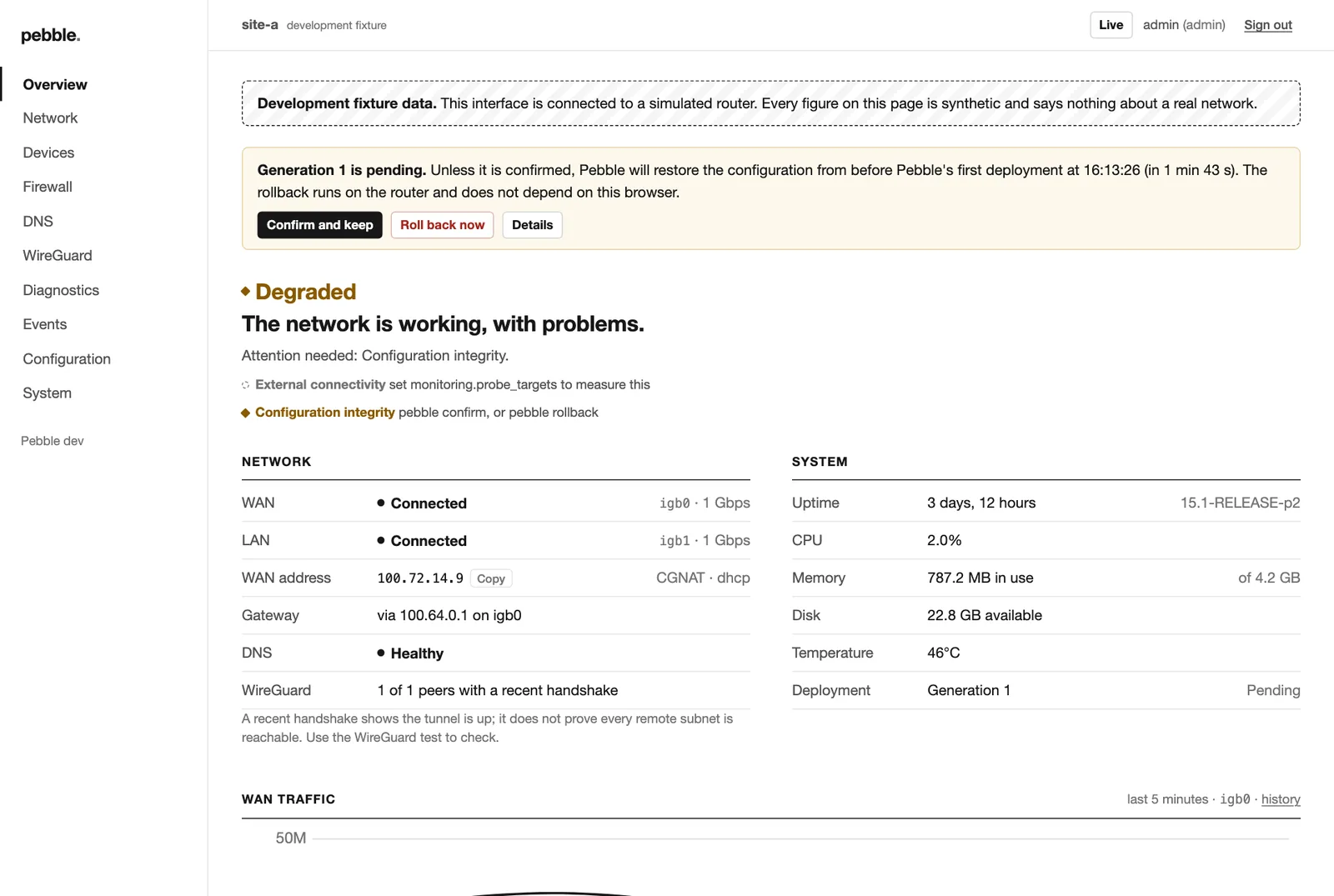 The countdown banner. The rollback runs on the router, not in your browser.
Changed your mind?#
pebble rollback                  # undo the pending change, or go back one version
pebble rollback --generation 3   # go back to a specific version
pebble status                    # see which generation you're on
💡 Tip. Every successful apply is a numbered generation. They're like save points in a game. Pebble keeps the last five by default.
✅ Done when "plan, apply, confirm" happens without you thinking about it.
6. Recipes: the everyday stuff#
TL;DR Each recipe is: add this YAML → run the golden loop. That's every recipe. Pick the one you need and ignore the rest.
⏱ 2 minutes each
🏷️ Give a device a fixed address#
dhcp:
  reservations:
    - name: nas
      mac: "02:00:5e:00:53:10"
      address: 192.168.10.20
      hostname: nas
Bonus: nas.home.arpa now resolves on your network. To find a device's
MAC address, look at pebble dhcp leases.
🔎 Add a local DNS name#
dns:
  records:
    - name: printer.home.arpa
      type: A
      value: 192.168.10.30
Check it: pebble dns test printer.home.arpa
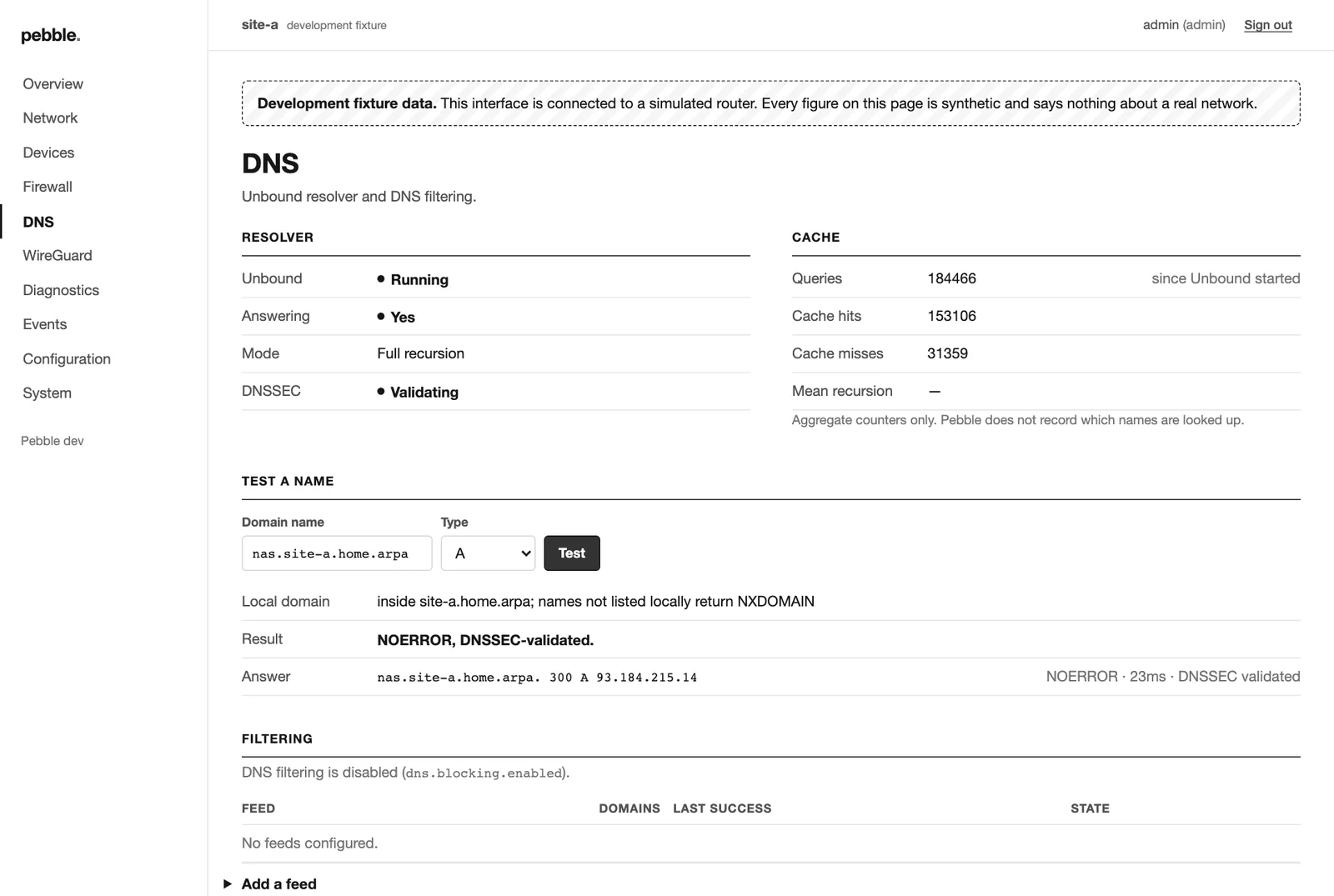 DNS → Test a name: every local policy that applies, then the real answer.
🚪 Forward a port to a device#
firewall:
  port_forwards:
    - description: Web server on the NAS
      protocol: tcp
      external_port: "8443"
      target: 192.168.10.20
      target_port: "443"
      sources: [198.51.100.0/24]   # optional: who's allowed in
⚠️ Careful. A port forward opens a hole to the whole Internet unless you set
sources. Only forward what you really mean to.
⛔ Stop a device reaching the Internet#
Give the device a reservation (above) and add one line:
dhcp:
  reservations:
    - name: kids-tablet
      mac: "02:00:5e:00:53:60"
      address: 192.168.10.60
      egress: none     # no Internet; the LAN and router still work
Or, in the web interface: Devices → set Internet via to Blocked → Change… → review → apply. To undo, set it back to WAN.
💡 Tip. This rule is checked before your own firewall rules, so no
passrule can quietly let the device back out. The device keeps its old access until it renews its lease onto the reserved address (or you reconnect it).
🚫 Block an address on the Internet for everyone#
To stop every device reaching one Internet address or network, use a firewall rule:
firewall:
  rules:
    - description: Nobody talks to this tracker
      action: block
      interface: lan
      protocol: any
      source: lan
      destination: 203.0.113.80     # or a prefix: 203.0.113.0/24
Swap source: lan for one address (192.168.10.30) to block just one
device from just that destination. Rules are checked top to bottom; the
first match wins. Want to switch a rule off without deleting it? Add
enabled: false. To block by name rather than address, use the DNS
denylist instead (see Block ads and trackers below).
⚠️ Careful. Devices sent through a VPN exit or blocked with
egressskip these rules for their Internet traffic: the per-device setting always wins.
🛡️ Send one device through a VPN (ProtonVPN, Mullvad…)#
Your VPN provider gives you a WireGuard configuration file. Copy its values
into a WireGuard interface with role: egress, and save its PrivateKey
line's value as /usr/local/etc/pebble/keys/wg1.key (mode 0600):
wireguard:
  interfaces:
    - name: wg1
      description: ProtonVPN UK
      role: egress                 # only devices you send use it
      address: 10.2.0.2/32         # [Interface] Address
      gateway: 10.2.0.1            # [Interface] DNS
      dns: [10.2.0.1]              # [Interface] DNS
      private_key_file: /usr/local/etc/pebble/keys/wg1.key
      peers:
        - name: proton-uk
          public_key: <[Peer] PublicKey>
          endpoint: <[Peer] Endpoint>
          persistent_keepalive: 25
          allowed_ips: [0.0.0.0/0]

dhcp:
  reservations:
    - name: laptop
      mac: "02:00:5e:00:53:21"
      address: 192.168.10.121
      egress: wg1                  # Internet via the VPN
Or pick VPN wg1 under Internet via on the Devices page. Everyone else keeps using your normal connection.
What you get:
- A kill switch. If the tunnel drops, that device has no Internet, rather than quietly using your normal connection.
- No DNS leaks. The device is handed the VPN's DNS server when it next renews its lease.
- Proof.
pebble firewall test --in lan --src 192.168.10.121 --dst 1.1.1.1 --proto tcp --port 443says the flow is passed by apebble-vpn-rule.
🧪 Honesty box. The firewall rules and their tests are done, but sending traffic through a WireGuard interface this way (
route-to) has not been tried on a real FreeBSD router yet. Check that the device's public address is the VPN's before trusting it.
🧹 Block ads and trackers (DNS)#
dns:
  blocking:
    enabled: true
    lists:
      - name: stevenblack
        url: https://raw.githubusercontent.com/StevenBlack/hosts/master/hosts
        format: hosts
Apply, then fetch the list the first time:
pebble dns blocklist update
pebble dns blocklist test ads.example.com
After that it refreshes itself. A download that fails keeps the last good
copy, so a broken list never breaks your DNS. Something you need got
blocked? Add it to allowlist. Want to block a name yourself, with all its
subdomains? Add it to denylist (for example denylist: [tiktok.com]).
🕵️ Stop devices sneaking round your DNS (DNS-over-HTTPS)#
Some apps ignore your DNS and talk to DoH servers directly. Block those servers by address:
firewall:
  ip_lists:
    update_interval: 24h
    lists:
      - name: doh
        url: https://raw.githubusercontent.com/dibdot/DoH-IP-blocklists/master/doh-ipv4.txt
  rules:
    - description: Block DNS-over-HTTPS bypass
      action: block
      interface: lan
      protocol: tcp/udp
      source: lan
      destination: list:doh
      ports: ["443"]
Then:
pebble firewall iplist update      # first download; it refreshes itself after
pebble firewall iplist test 1.1.1.1
🧪 "Would this be allowed?" (without trying it)#
pebble firewall test --in lan --src 192.168.10.50 --dst 1.1.1.1 --proto tcp --port 443You get pass or block and the rule responsible. Nothing is sent over the network.
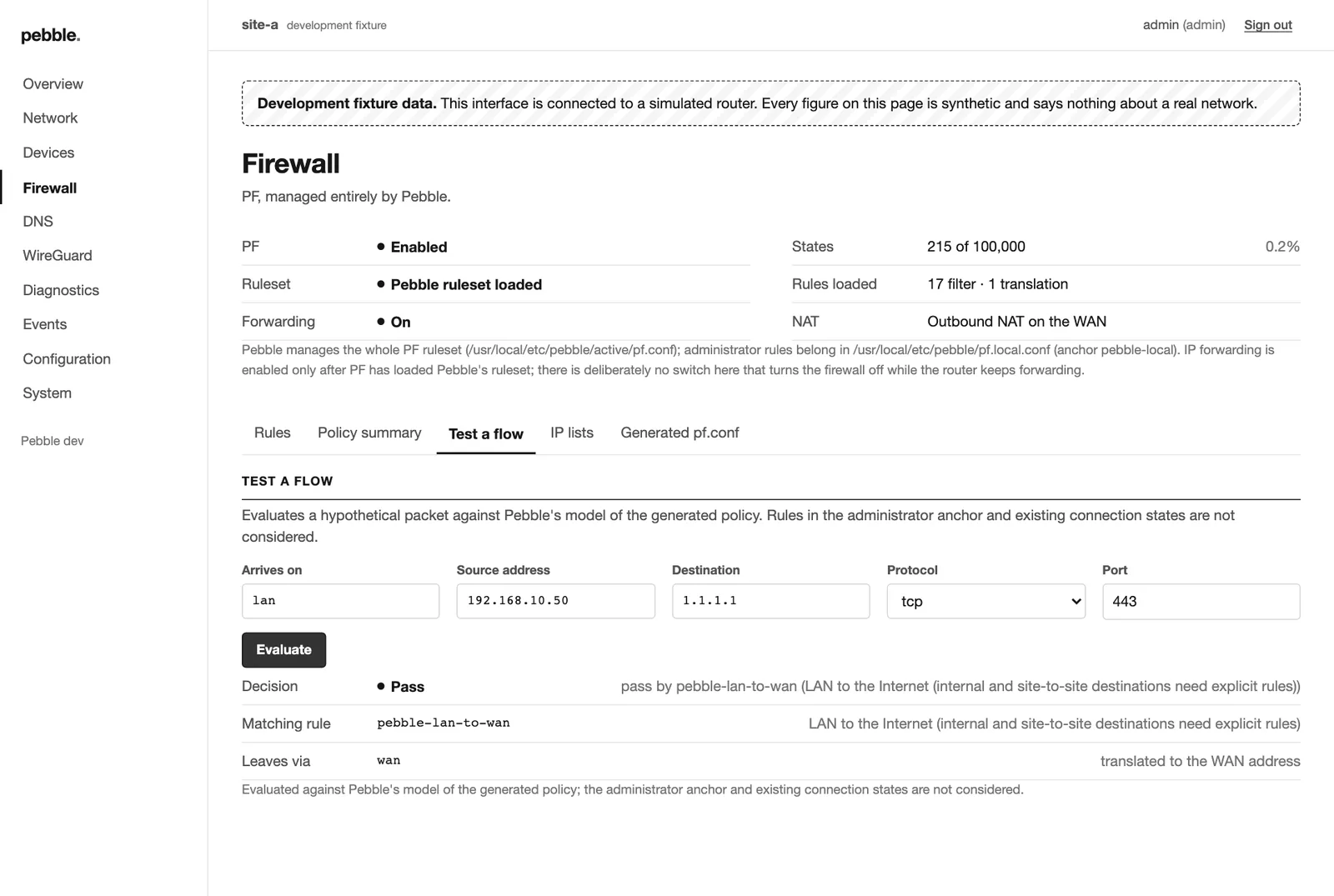 The same test in the web interface (Firewall → Test a flow).
✅ Done when your change is applied, confirmed (if asked) and works.
7. Site-to-site WireGuard#
TL;DR
pebble vpn genkey wg0on each router.- Describe the tunnel and the other site in
pebble.yaml. - Add firewall rules for what each side may reach. Apply. Test.
⏱ 30 minutes, the first time
The idea#
Two sites, each with its own LAN, joined by an encrypted tunnel. Traffic is routed (each side sees the other's real addresses) and never NATed. Nothing crosses the tunnel unless a firewall rule allows it.
  Site A  192.168.10.0/24 ── router A ══ WireGuard ══ router B ── 192.168.20.0/24  Site B
                              10.77.0.1                10.77.0.2
Step 1: keys#
On each router:
pebble vpn genkey wg0This writes a private key to /usr/local/etc/pebble/keys/wg0.key
(readable only by root) and prints the public key. Swap public keys
between sites. Private keys never leave the box they were made on.
Step 2: the tunnel (on site A)#
wireguard:
  interfaces:
    - name: wg0
      address: 10.77.0.1/24
      listen_port: 51820
      private_key_file: /usr/local/etc/pebble/keys/wg0.key
      peers:
        - name: site-b
          public_key: "PASTE-SITE-B-PUBLIC-KEY-HERE"
          endpoint: site-b.example.net:51820
          persistent_keepalive: 25
          allowed_ips: [10.77.0.2/32, 192.168.20.0/24]
          routes: [192.168.20.0/24]
Step 3: say what may cross#
firewall:
  rules:
    - description: Site A LAN may reach all of site B
      action: pass
      interface: lan
      source: lan
      destination: peer:site-b
    - description: Site B may reach the file server over SMB only
      action: pass
      interface: wg0
      protocol: tcp
      source: peer:site-b
      destination: 192.168.10.5
      ports: ["445"]
Step 4: apply and test#
pebble apply && pebble confirm
pebble vpn status
pebble vpn test site-b
pebble vpn test walks through the connection step by step: the peer's
settings, the tunnel interface, the handshake, the route, the firewall,
the traffic counters and a reply from the far side. It tells you
exactly which step failed.
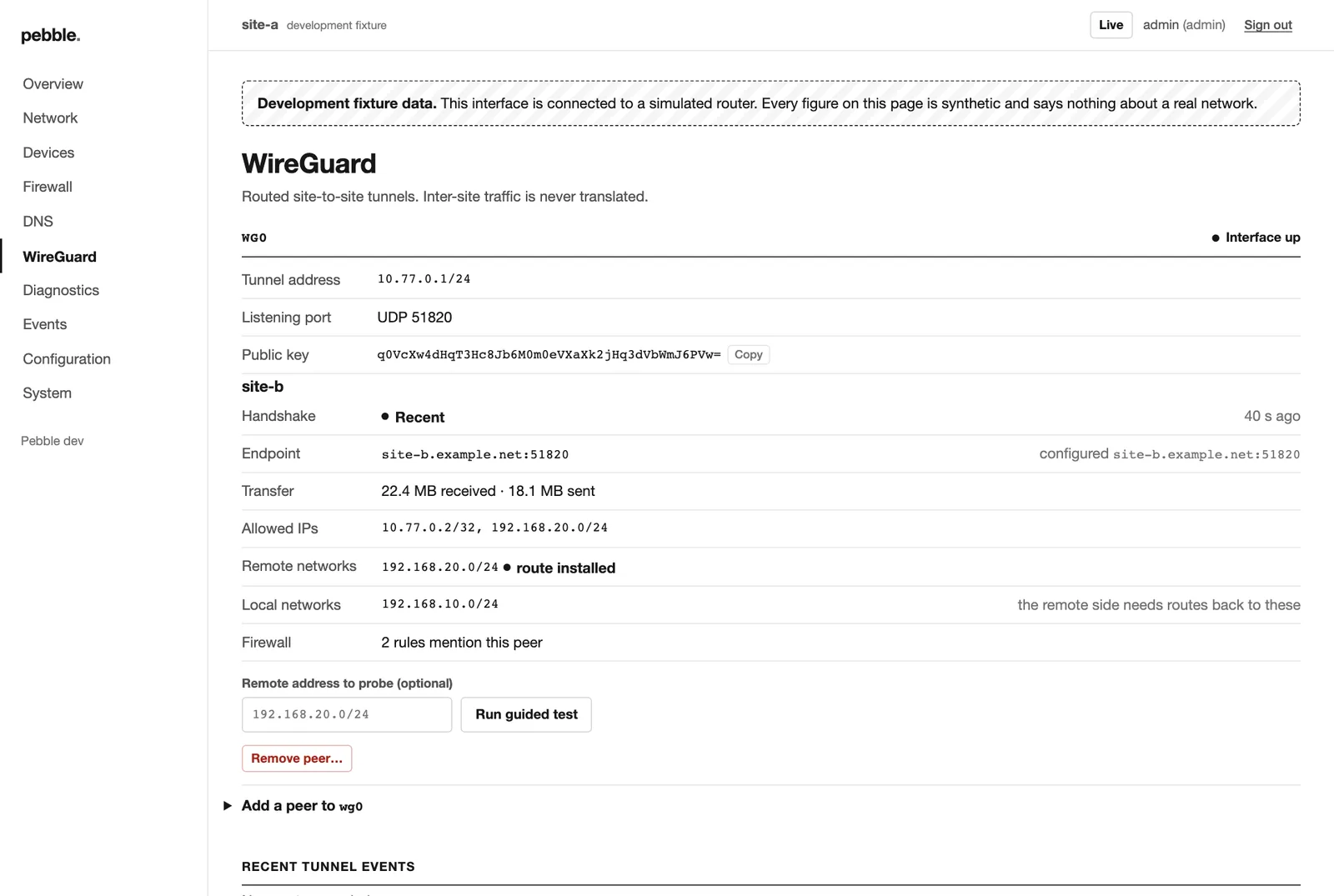 The WireGuard page: handshake, endpoint, transfer, routes and firewall coverage for each peer.
💡 Tip. Setting up the other end?
pebble vpn show site-b --endpoint your-router.example.net:51820prints the settings site B needs.
⚠️ Careful. A fresh handshake means the tunnel is up. It does not prove that every remote network is reachable. That's what
pebble vpn testis for.
✅ Done when pebble vpn test site-b passes every step.
8. Seeing what's going on#
TL;DR
pebble status: a quick look.pebble top: a live dashboard in your terminal.pebble explain outage: what went wrong, and how sure Pebble is.
⏱ Seconds
The quick look#
pebble status        # one-screen summary
pebble diagnose      # full health check, with evidence and what to do
Health is one of four honest words: healthy, degraded, unavailable or unknown. Pebble never shows "healthy" when something critical has failed, and never guesses when it doesn't know.
The live dashboard#
pebble top| Key | Does |
|---|---|
1 2 3 4 or Tab |
Overview, Interfaces, WireGuard, Events |
p or space |
Pause (handy for reading) |
+ / - |
Slower / faster refresh |
↑ ↓ (or j k) |
Scroll |
q |
Quit |
Works happily over SSH, needs neither the web interface nor the agent, and
has --ascii and --plain for awkward terminals.
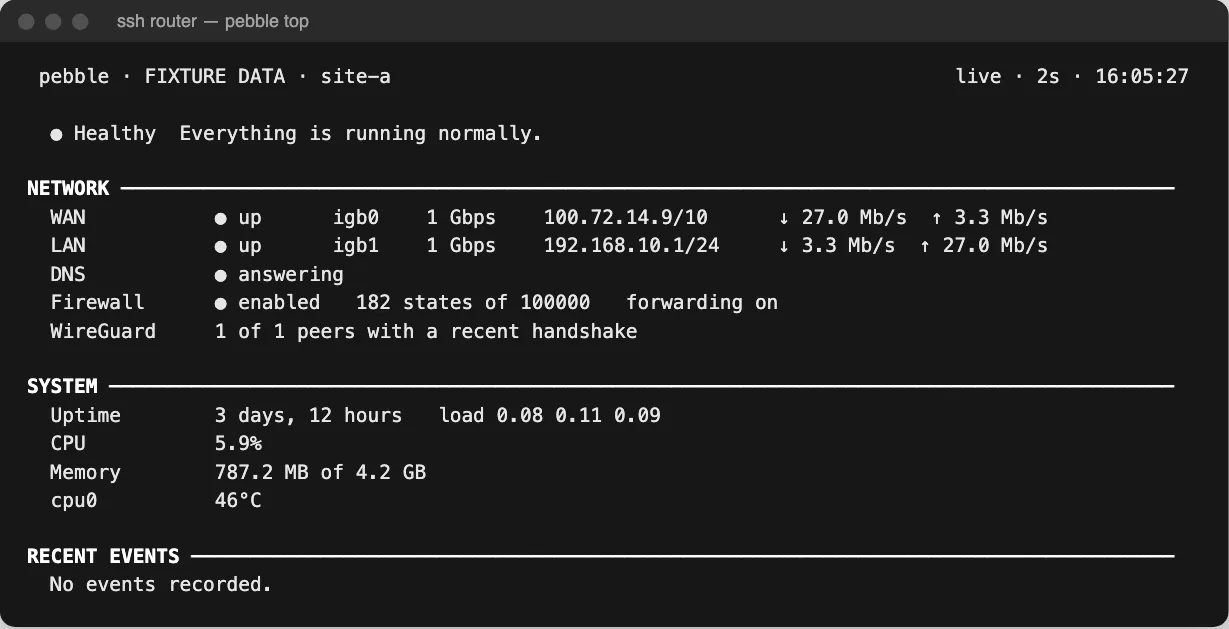
pebble top over SSH. (Simulated router; note the FIXTURE DATA label in the header.)
The flight recorder (optional, and brilliant)#
Switch it on once:
monitoring:
  enabled: true
From then on Pebble quietly records events: cables unplugged, driver hiccups, DHCP renewals, gateway changes, DNS failures, tunnel drops and configuration changes. It does not record your traffic or the websites you visit. Storage is capped (32 MB by default).
pebble events --last 24h                      # the timeline
pebble events --severity warning --last 7d    # just the worrying bits
pebble explain outage --last 1h               # the detective
explain outage sorts the evidence into four piles, so you always know how
much to trust it:
| Pile | Means |
|---|---|
| Observed | What actually happened, with times and sources |
| Likely explanation | What the sequence suggests |
| Not established | What the evidence can't tell you |
| Suggested next steps | What to try |
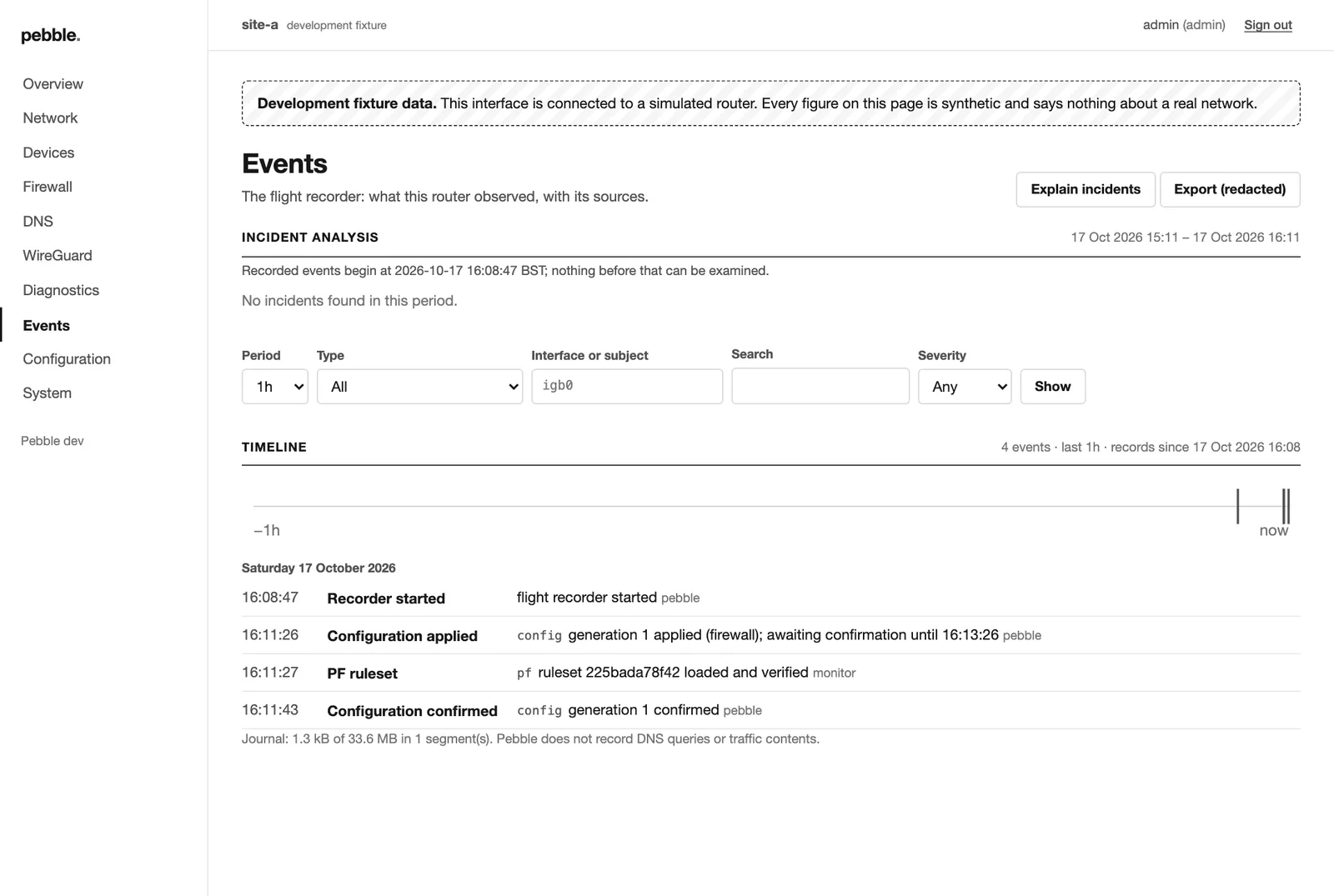 The Events page: a timeline you can filter, plus Explain incidents.
💡 Tip. A classic: "watchdog timeout, then link down, then link up". Pebble will tell you the network card stopped sending, and will be honest that it can't tell whether the driver, the card, the cable or the modem is to blame.
✅ Done when you've run pebble top and pressed every number key at
least once. (Go on. It's fun.)
9. The web interface#
TL;DR
pebble web user add yourname --role admin- Add
management.webtopebble.yaml, listening on your LAN address. - Apply, confirm, and browse to
https://192.168.10.1:8443/.
⏱ 10 minutes
It's optional and off by default. Routing never depends on it: stop it, and the router doesn't notice.
Switch it on#
- Make an account. There's no default password, ever.
pebble web user add yourname --role admin - Add this under
management:(next tossh:), using your LAN address and range:management: web: enabled: true listen: 192.168.10.1:8443 allow_from: [192.168.10.0/24] - The golden loop:
pebble plan pebble apply pebble confirm - Open
https://192.168.10.1:8443/in a browser.
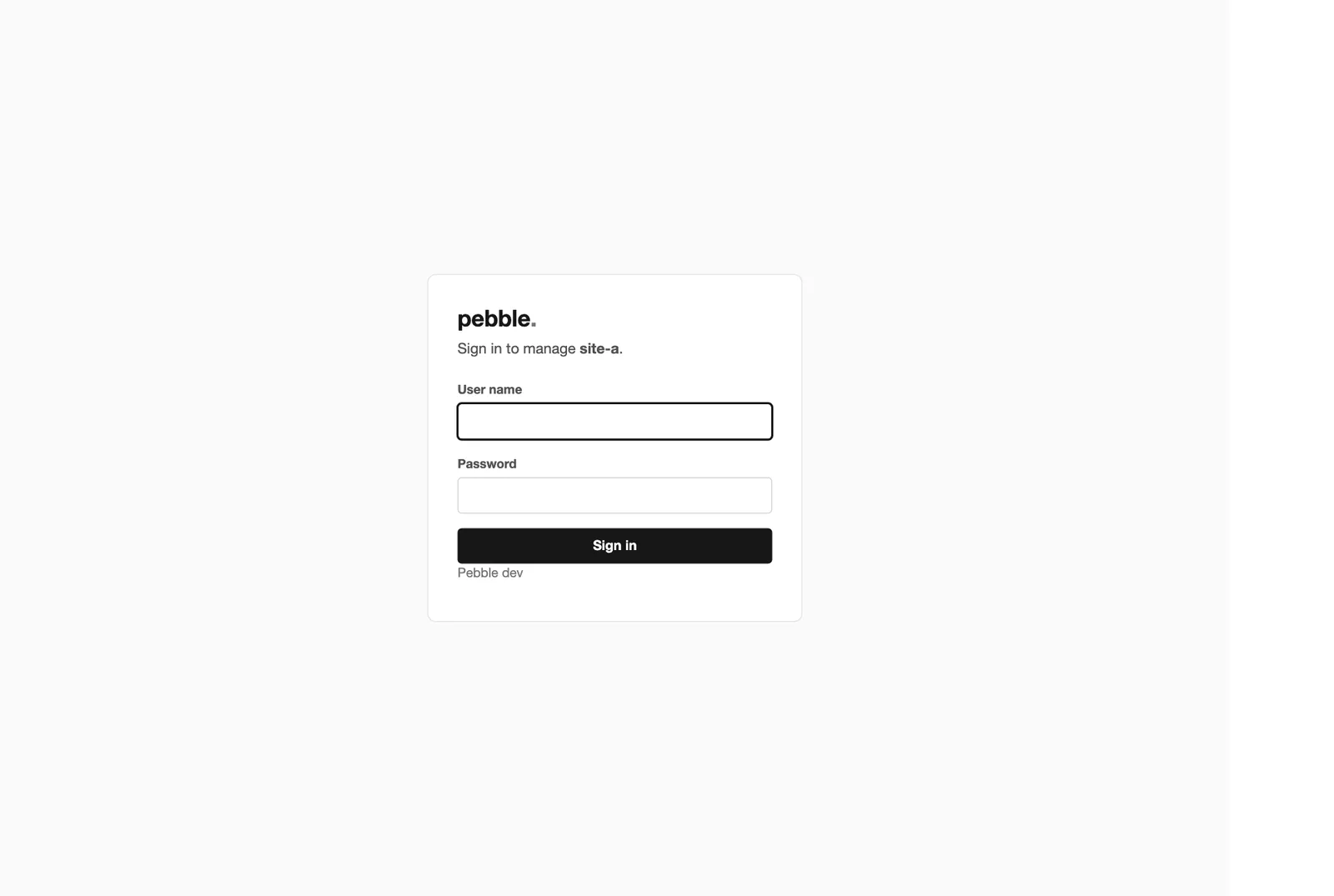 No default password. Ever.
⚠️ Careful. Your browser will warn about the certificate, because Pebble made its own. Run
pebble web certon the router and check that the SHA-256 fingerprint it prints matches the one your browser shows. Only then click through.
What's in there#
| Page | What you get |
|---|---|
| Overview | Is the Internet OK? Are services OK? Anything odd? Anything to do? |
| Network | Interfaces, live traffic charts, routing table, "which route does this address use?" |
| Devices | Everything on your network, live traffic per device, and how each one reaches the Internet (WAN, VPN or blocked) |
| Firewall | Rules with match counts, policy summary, flow tester, generated pf.conf |
| DNS | Resolver health, test a name, blocklists, allow and deny lists, local names |
| WireGuard | Tunnels, peers, handshakes, guided connection test |
| Diagnostics | Health checks, ping, traceroute |
| Events | The flight recorder's timeline and incident explanations |
| Configuration | YAML editor, history, restore an older version |
| System | Hardware, services, storage, Pebble's own memory use |
Network, with live traffic and the route lookup:
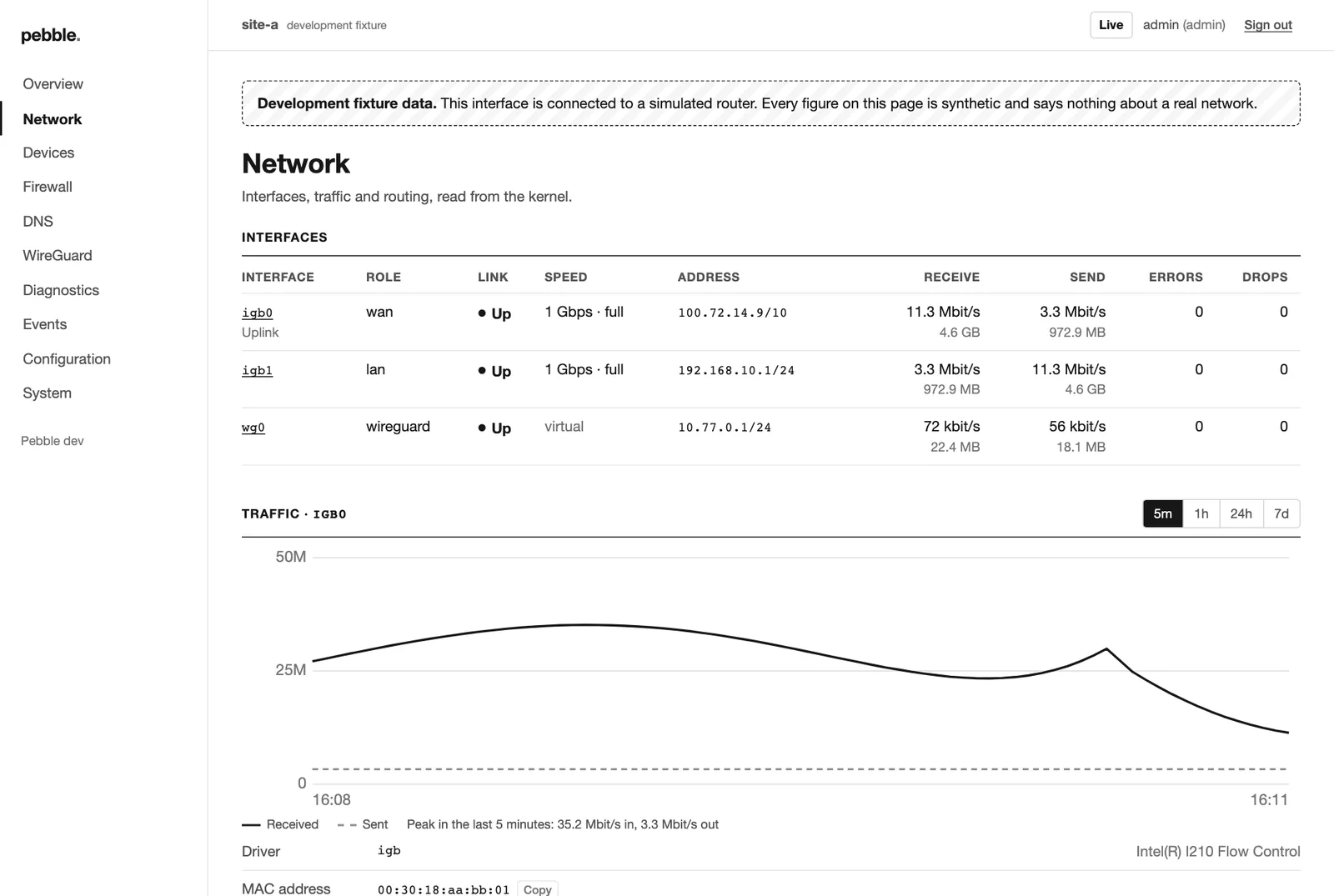 Charts use black and grey with solid and dashed lines, so you never need colour to tell them apart.
Devices, with honest status words ("seen recently" is not the same as "lease active"):
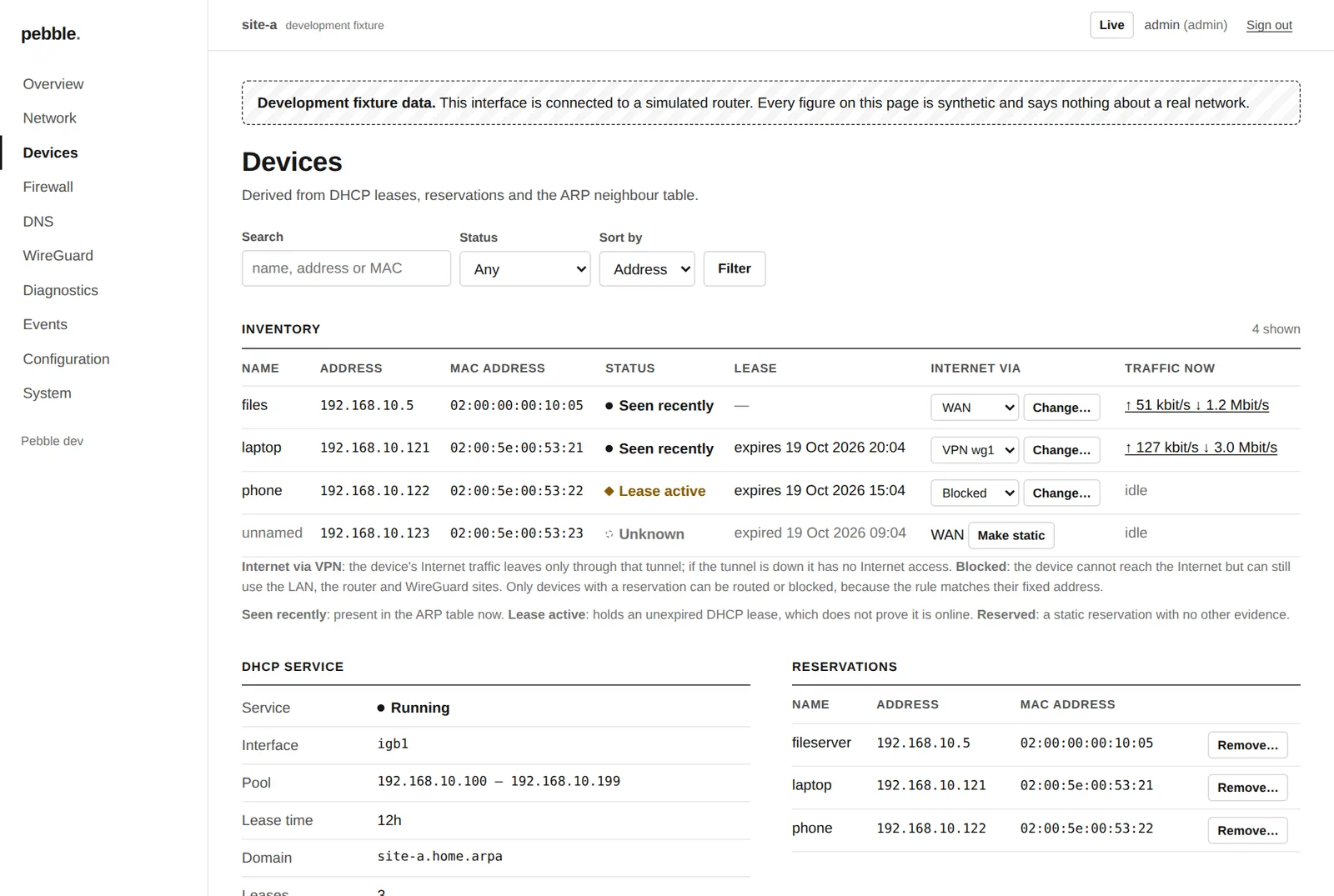 Each device's live traffic, and how it reaches the Internet. Reserved devices can be switched between WAN, a VPN exit and Blocked; a dynamic one is made static first.
Click a device's traffic figures to watch its connections live:
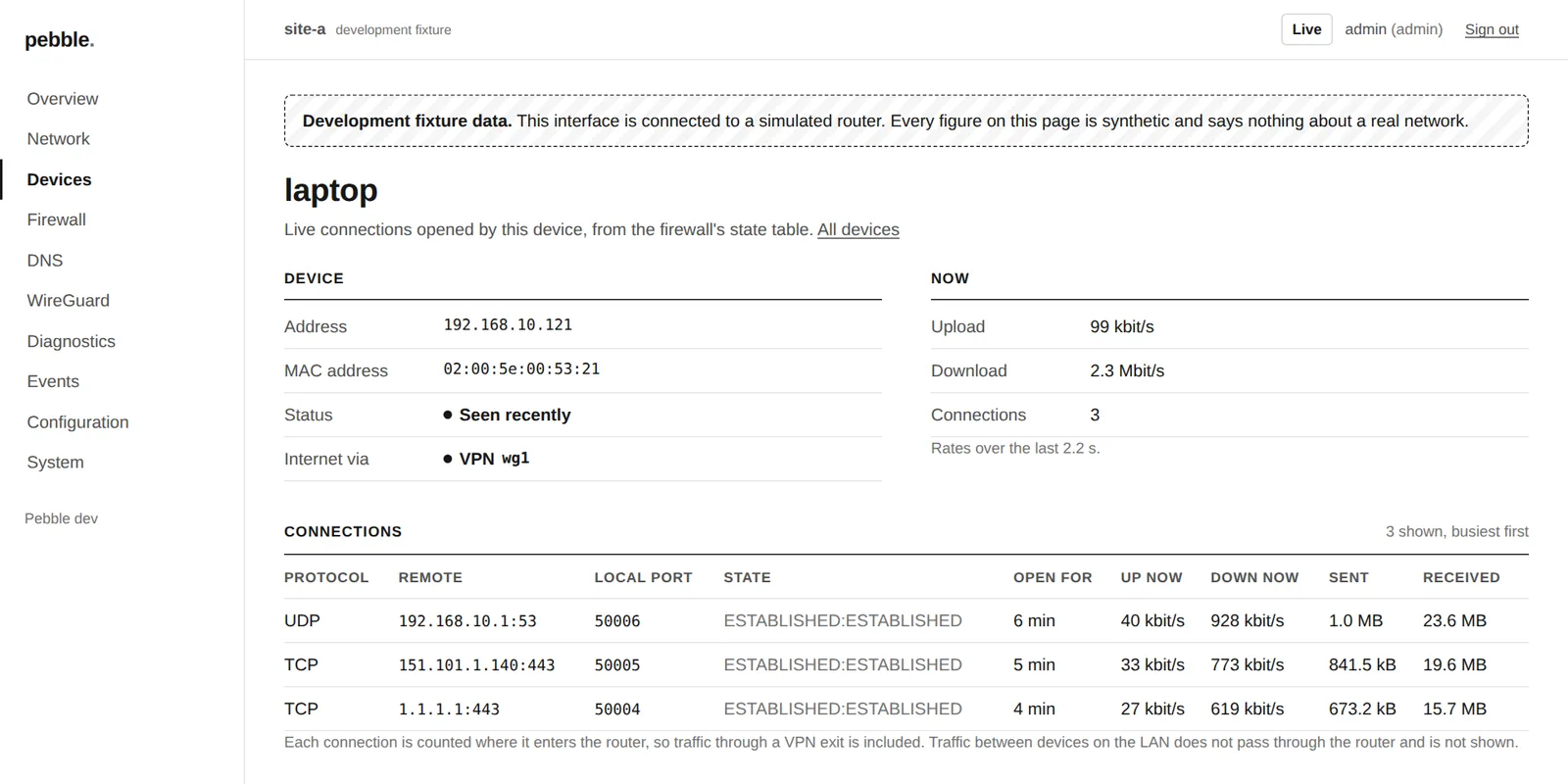 Every connection the device has open, busiest first, refreshed every two seconds. Pebble keeps none of it: it is read from the firewall when you look.
Firewall, with match counters and lint warnings:
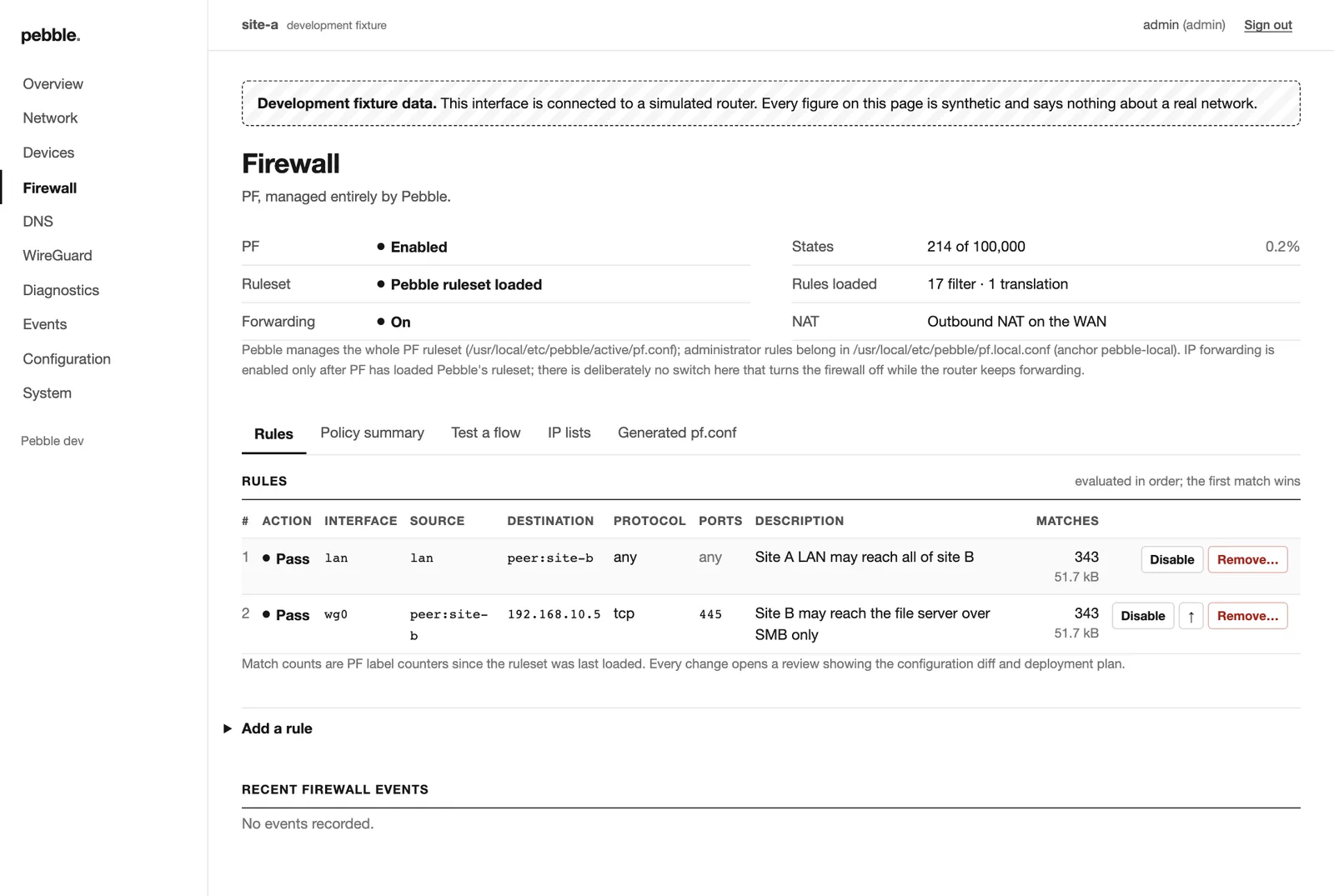 Every rule, its counters, and buttons to disable, move or remove it (each one goes through review).
Configuration, with the YAML editor and history:
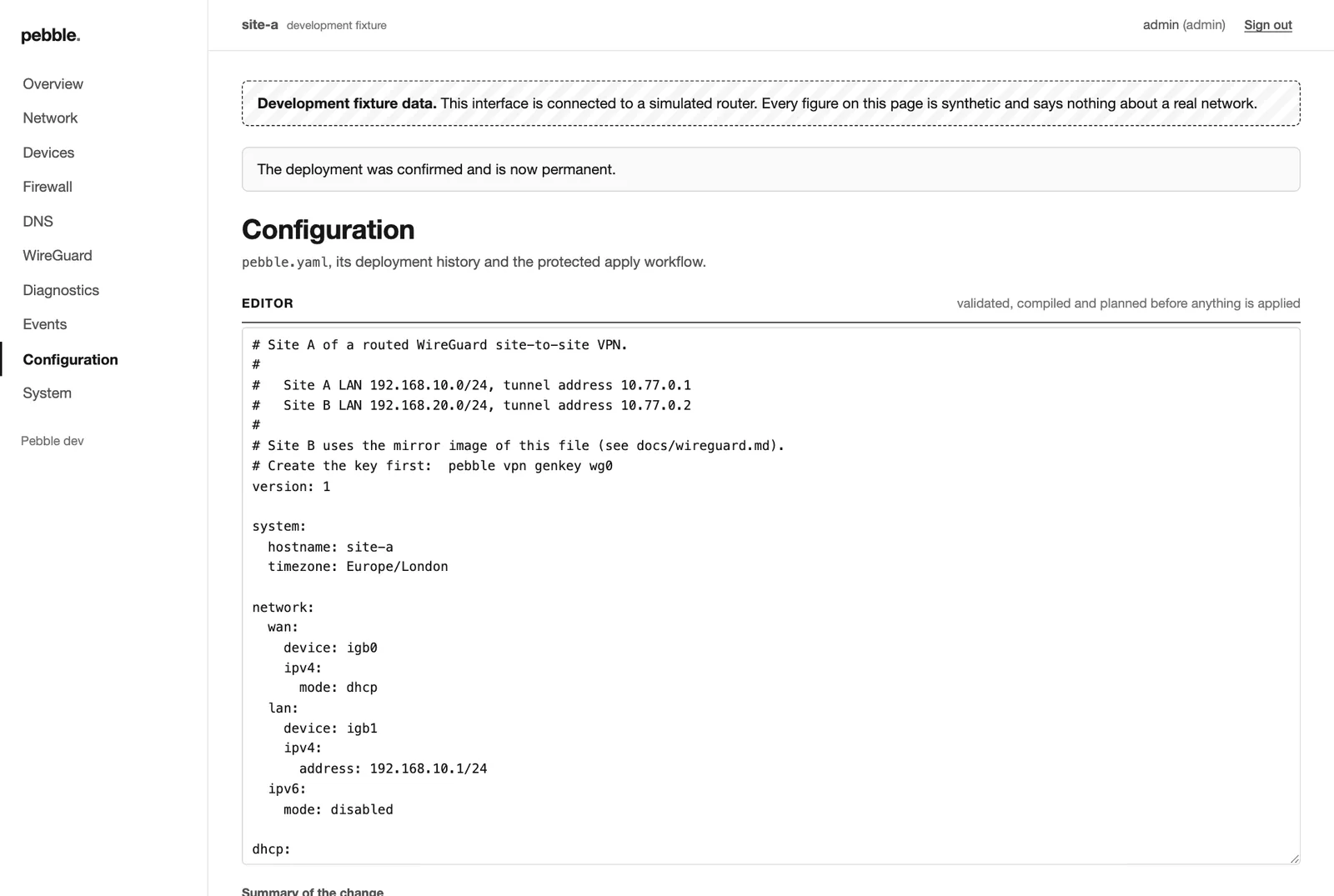 Edit the YAML directly; it still goes through review, plan and protected apply.
Making changes in the browser#
Every change, whether from a button or the YAML editor, shows you a
review page first: the exact lines changing in pebble.yaml, every
generated file affected, and any warnings. Only then can you press
Apply. Risky changes show a banner with a countdown and two buttons:
Confirm and keep or Roll back now.
After you press Apply, you watch it happen:
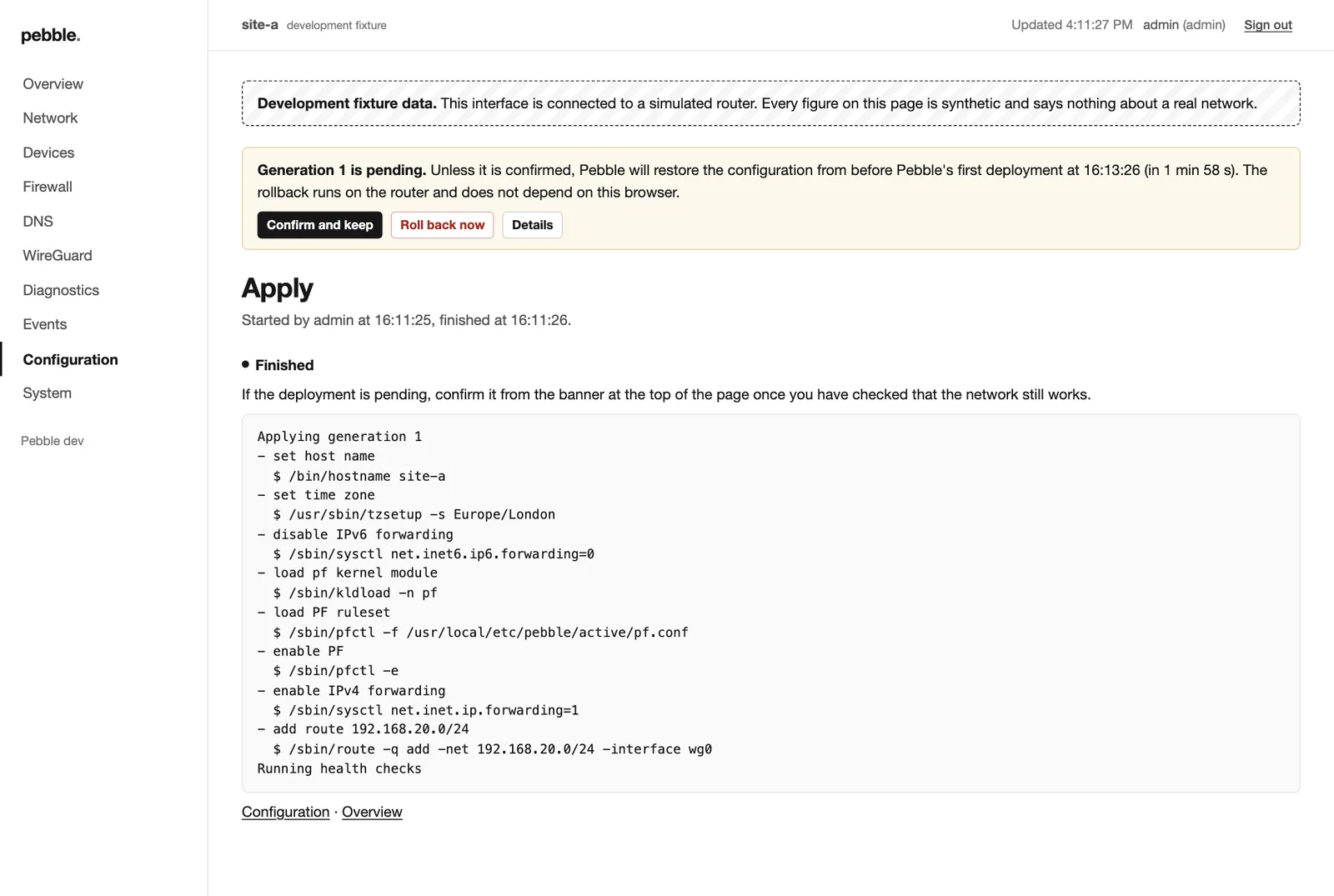 Every step, as it runs.
💡 Tip. The rollback timer runs on the router, not in your browser. Close the tab, lose Wi-Fi, drop your laptop in the bath: the router still puts things back if you don't confirm.
Two kinds of account#
| Role | Can |
|---|---|
viewer |
Look at everything, test things, preview changes |
admin |
All that, plus apply, confirm and roll back |
pebble web user add guest --role viewer
pebble web user list
pebble web user passwd yourname
pebble web user remove guest      # their sessions end at once
💡 Tip. It works on your phone too.
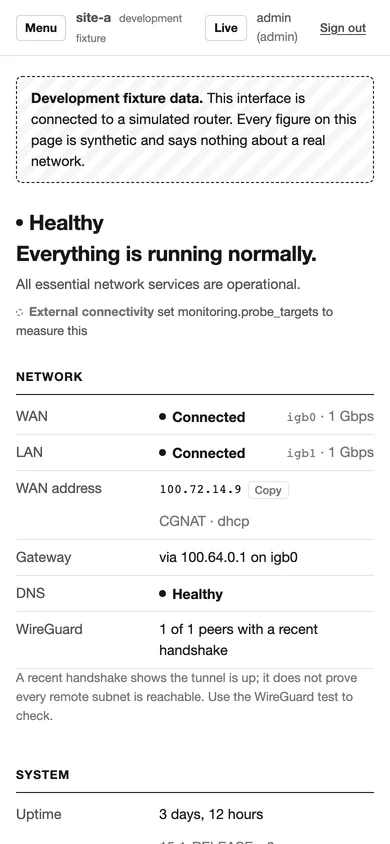
The overview on a phone-sized screen.
✅ Done when you can sign in and the Overview says your network is healthy.
10. Backups, recovery and upgrades#
TL;DR
pebble backupnow and then.- If a change goes wrong, Pebble usually fixes it before you notice.
- Upgrade: new binary →
pebble bootstrap --skip-packages→pebble plan.
⏱ 2 minutes
Back up#
pebble backup                    # saved to /var/db/pebble/backups/
pebble backup --include-keys     # also WireGuard keys (keep this file safe!)
Copy the file somewhere that isn't the router.
Restore#
pebble restore pebble-backup.tar.gz --dry-run   # see what it would do
pebble restore pebble-backup.tar.gz             # puts pebble.yaml back
pebble apply && pebble confirm                  # and deploy it
Upgrade Pebble#
pebble update check                       # tells you about updates; installs nothing
./pebble-new bootstrap --skip-packages    # installs the new binary and service scripts
pebble plan                               # see what the new version would change
💡 Tip.
pebble bootstrapis safe to run as often as you like. It only does what's missing.
✅ Done when a backup file lives somewhere other than the router.
11. Something's wrong#
TL;DR Breathe. Run pebble diagnose. It usually tells you what's wrong
and what to do. Then find your symptom below.
🔥 The Internet is down#
pebble diagnose: read the first thing marked unavailable.pebble interfaces: is the WAN port up, with a link and an address?pebble explain outage --last 1h: what happened, in order.- Just made a change?
pebble rollback.
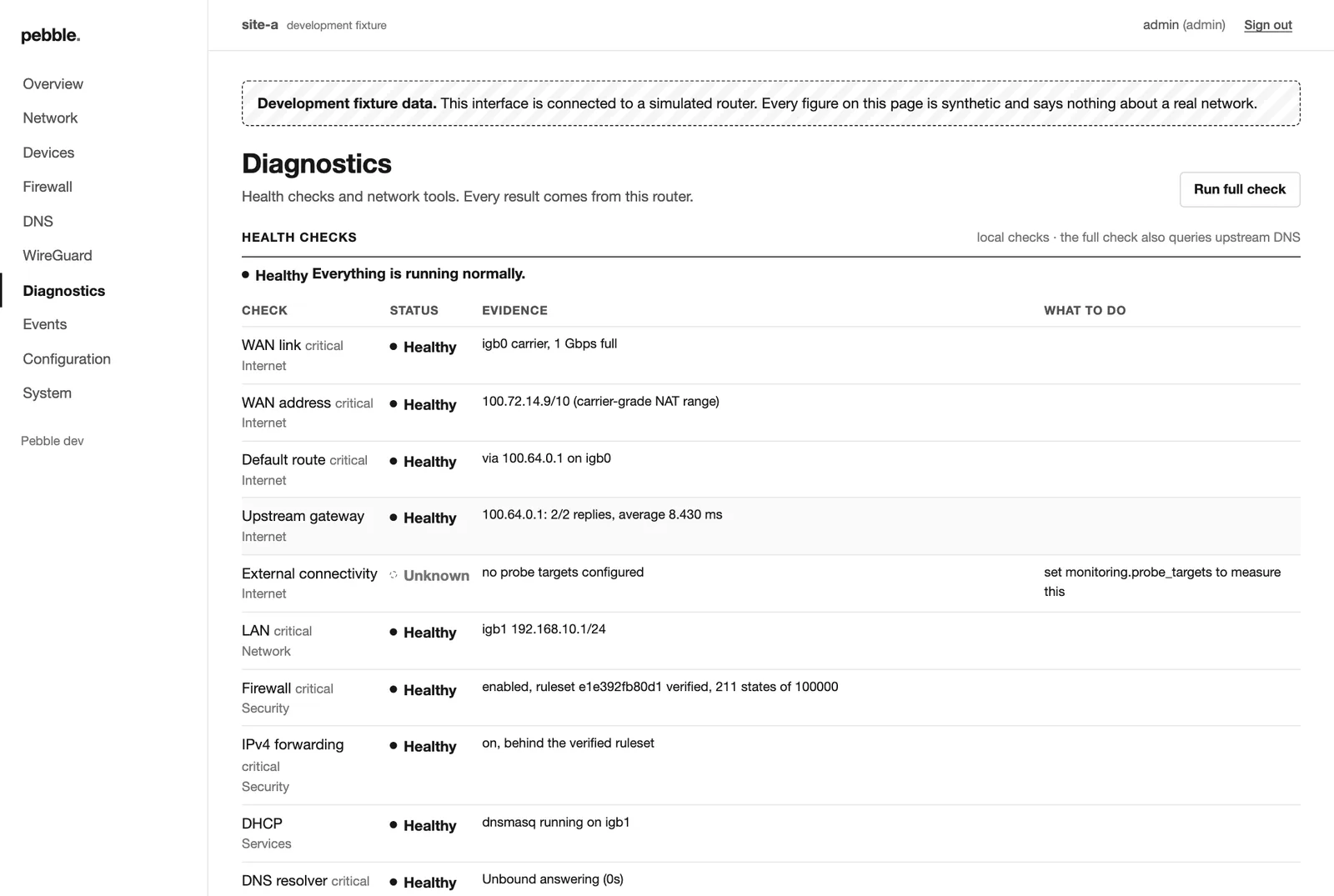 Diagnostics in the web interface: every check, its evidence, and what to do about it.
🔒 I've locked myself out over SSH#
Wait. If the change is unconfirmed, it rolls back by itself within the rollback window (2 minutes by default). Then reconnect and look at what you changed.
If you'd already confirmed it, use the local console and run
pebble rollback.
🌐 Websites don't load, but ping 1.1.1.1 works#
That's DNS.
pebble dns test example.com       # what happened to this name, and why
pebble dns status
If a site you need is being blocked, add it to dns.blocking.allowlist.
🏷️ A device didn't get an address#
pebble dhcp status
pebble dhcp leases
Check the DHCP range isn't full, and that a reservation isn't pinning the device to a different address.
🔐 The tunnel's up but I can't reach the other site#
pebble vpn test site-bThe usual culprits, in order:
- A missing firewall rule on one side.
- A missing route back on the other router.
allowed_ipsthat doesn't include the remote LAN.
🛡️ A device has no Internet through its VPN#
pebble vpn status: the VPN exit needs a recent handshake. None? Check the endpoint, the provider's public key and the private key file, all from the same provider file.pebble firewall test --in lan --src <device> --dst 1.1.1.1 --proto tcp --port 443should name apebble-vpn-rule. If not, the device isn't on its reserved address yet: reconnect it.
No Internet while the tunnel is down is the kill switch doing its job.
🧱 "Is my firewall even loaded?"#
pebble firewall statusPebble only enables forwarding once its own ruleset is loaded in PF. If it isn't, the router stops forwarding rather than running without a firewall.
✅ Done when the thing works again. (Then take a backup.)
12. Cheat sheet#
| Job | Command |
|---|---|
| Look before changing | pebble plan --diff |
| Apply | pebble apply |
| Keep it | pebble confirm |
| Undo | pebble rollback |
| Go back to version N | pebble rollback --generation N |
| Check the file only | pebble validate |
| Quick status | pebble status |
| Full health check | pebble diagnose |
| Live dashboard | pebble top |
| What happened? | pebble events --last 24h |
| Why did it break? | pebble explain outage --last 1h |
| Network ports | pebble interfaces |
| Routing table | pebble routes |
| Which route? | pebble route explain 192.168.20.10 |
| Firewall counters | pebble firewall status |
| Firewall in plain English | pebble firewall explain |
| Would it pass? | pebble firewall test --in lan --src … --dst … --proto tcp --port 443 |
| Block a device's Internet | reservation egress: none (or Devices → Blocked) |
| Send a device via a VPN | reservation egress: wg1 (or Devices → VPN wg1) |
| Who's using the bandwidth? | web interface → Devices → traffic figures |
| DHCP leases | pebble dhcp leases |
| Test a DNS name | pebble dns test example.com |
| Refresh blocklists | pebble dns blocklist update |
| Refresh IP lists | pebble firewall iplist update |
| VPN peers | pebble vpn peers |
| Test a tunnel | pebble vpn test site-b |
| New WireGuard key | pebble vpn genkey wg0 |
| Web account | pebble web user add name --role admin |
| Web certificate fingerprint | pebble web cert |
| Back up | pebble backup |
| Import from OPNsense | pebble import opnsense config.xml --map wan=igb0,lan=igb1 |
Most commands take --json for scripts, and -h for help.
13. Glossary (jargon, decoded)#
| Word | Plain English |
|---|---|
| WAN | The Internet-facing port |
| LAN | Your network's port |
| NAT | Lets all your devices share one Internet address |
| PF | FreeBSD's firewall |
| DHCP | Hands out addresses to devices automatically |
| Reservation | "This device always gets this address" |
| DNS | Turns names like example.com into addresses |
| DNSSEC | Checks DNS answers haven't been tampered with |
| Generation | A numbered, saved version of your router's configuration |
| Rollback | Going back to an earlier generation |
| Peer | The router at the other end of a WireGuard tunnel |
| Handshake | WireGuard's "hello, it's me" between peers |
| VPN exit | A WireGuard tunnel to a VPN provider that only chosen devices use |
| Kill switch | If the VPN drops, its devices get no Internet instead of leaking out the normal way |
| Egress | "Way out": how a device reaches the Internet |
| Agent | The optional background helper behind the web interface and flight recorder |
| Flight recorder | Pebble's log of important network events |
Where next?#
- Every setting explained: Configuration and
examples/annotated.yaml - Deeper dives: Networking · DNS filtering · WireGuard · Recovery · Web interface · Flight recorder
- Moving from OPNsense: Migration
- The security model: Security
Open Pebble. Understand the network. Make a change confidently. Close Pebble. The router carries on quietly doing its job. 🪨